Overview
This article addresses a common problem where SIP (Session Initiation Protocol) and RTP (Real-time Transport Protocol) traffic is blocked by Kerio Control firewall rules, preventing proper VoIP communication. Customers may experience symptoms such as:
- One-way audio or no audio during VoIP calls
- Dropped UDP packets visible in firewall logs (e.g., "DROP Block other traffic packet")
- SIP inbound traffic rules showing no activity for extended periods
- Specific RTP ports being blocked despite having SIP+RTP rules configured
- Error messages indicating traffic blocked by default "Block other traffic" rule
The issue typically occurs when firewall rules are not properly configured to match all necessary SIP/RTP traffic patterns, port ranges are incomplete, or NAT translation settings don't align with the actual traffic flow.
Solution
Follow these step-by-step instructions to resolve SIP RTP traffic blocking issues:
Step 1: Create a Consolidated Bidirectional SIP Rule
Instead of maintaining separate SIP IN and SIP OUT rules, create a single comprehensive rule:
- Navigate to Configuration > Traffic Rules in Kerio Control
- Create a new rule with the following settings:
- Name: SIP Bidirectional
- Source: Your SIP provider's IP address (e.g., 185.97.112.122) OR Any
- Destination: Internet Interfaces OR your internal SIP server IP
- Service: SIP+RTP (service group)
- Action: Allow
- Enable: Log Packets and Log Connections (under Action column)
- Place this rule at the top of your traffic rules list to ensure it's evaluated first
- Save the configuration
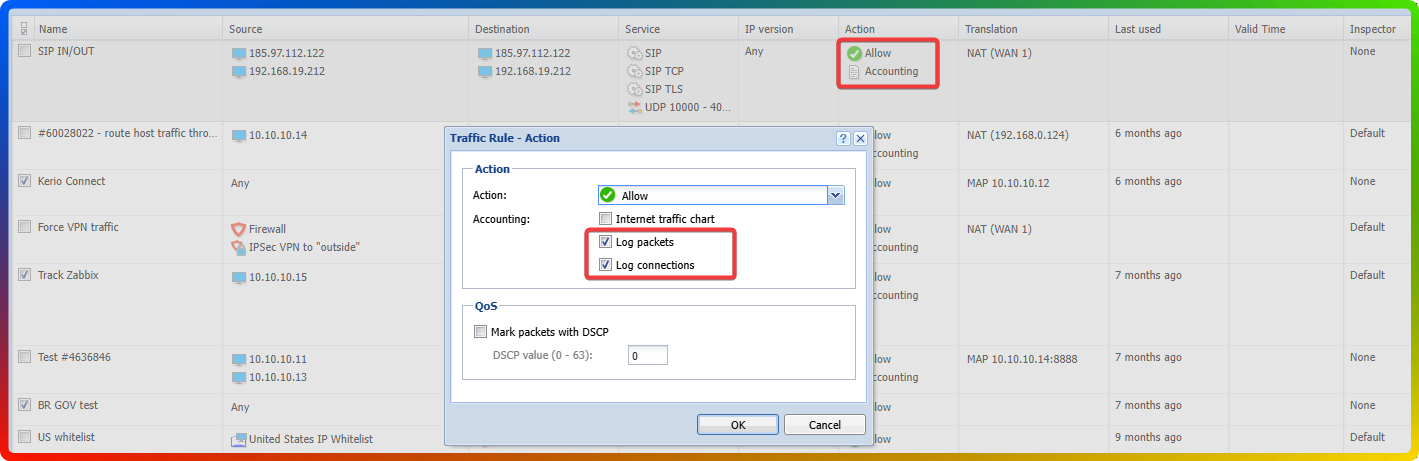
Step 2: Verify and Expand RTP UDP Port Range
The default RTP UDP port range may not cover all ports used by your SIP provider:
- Go to Configuration > Services in Kerio Control
- Locate the SIP+RTP service group
- Edit the RTP UDP service definition
- Verify the port range includes all necessary ports:
- Default range: 10000-40000
- Check your firewall logs for dropped packets to identify additional ports being used
- Expand the range if your provider uses ports outside this range (e.g., if you see port 11263 being blocked, ensure your range covers it or create an additional service definition)
- Ensure Protocol is set to UDP
- Set Source Port to Any
- Save the changes
Step 3: Configure Proper NAT Translation
Ensure NAT (Network Address Translation) is correctly configured:
- In your SIP traffic rule, verify the NAT settings:
- NAT Interface: Select the appropriate external interface (e.g., NLS Optic)
- Translation Type: Address translation
- Translated Address: Your internal SIP server/phone IP (e.g., 192.168.19.212)
- Confirm that the public IP address receiving traffic (e.g., 178.238.79.111) is correctly mapped to the internal device
- If using multiple internal devices, ensure each has appropriate NAT rules
Step 4: Monitor Rule Activity
After implementing changes:
- Go to Traffic Rules and check the Last Used column
- Your new bidirectional SIP rule should show recent activity
- If the rule shows no activity after several hours, review source/destination settings
- Check Logs > Traffic to confirm SIP/RTP packets are being allowed rather than dropped
If the issue persists, proceed with the below steps:
- Enable Packets dropped for some reason debug messages (Using the Debug Log) before attempting to replicate the issue
- Make a test call or wait for the issue to occur
- Review the debug log for specific packet drop reasons
- Gather the Support Information File, along with
- Filter logs
- Connection logs
- Debug logs (with "Packets dropped" messages enabled)
- Contact support with these files for advanced troubleshooting
Summary
To resolve SIP RTP traffic blocking in Kerio Control:
- Create a single bidirectional SIP rule with comprehensive source/destination settings and place it at the top of your traffic rules
- Verify RTP UDP port ranges cover all ports used by your SIP provider (default 10000-40000, but may need expansion)
- Configure NAT translation properly to map public IPs to internal SIP devices
- Enable detailed logging to identify specific blocking reasons
- Monitor rule activity to confirm traffic is matching your allow rules
- If issues persist, collect diagnostic files and contact support with detailed information
The key to resolving this issue is ensuring your firewall rules are broad enough to capture all SIP/RTP traffic patterns while maintaining security through proper service group definitions.
FAQ
Q1: Why is my SIP IN rule showing "Last used 7 days ago" even though I'm making calls?
A1: This indicates that inbound SIP/RTP packets are not matching your rule due to source/destination mismatch, incorrect service definitions, or port range limitations. The traffic is likely being caught by a default "Block other traffic" rule instead. Review your rule's source IP, destination settings, and ensure the RTP UDP service includes all ports your provider uses. Creating a bidirectional rule and placing it at the top of your rules list typically resolves this issue.
Q2: What ports should I include in my RTP UDP service definition?
A2: The standard RTP port range is 10000-40000 UDP, but your SIP provider may use different or additional ports. Check your firewall logs for dropped UDP packets to identify the specific ports being used (look for destination ports in dropped packet logs). Some providers use ports outside the standard range (e.g., 11263), which need to be explicitly added to your service definition. Contact your SIP provider for their specific port requirements.
Q3: Should I create separate inbound and outbound SIP rules or a single bidirectional rule?
A3: A single bidirectional SIP rule is recommended for most configurations as it simplifies management and reduces configuration errors. Set the source to your SIP provider's IP and destination to "Internet Interfaces" or your internal SIP server, then enable both inbound and outbound traffic by not restricting direction. This ensures all SIP/RTP traffic is handled by one rule, making troubleshooting easier. Place this rule at the top of your traffic rules list to ensure it's evaluated before more restrictive rules.
Ciprian Nastase
Comments