Overview
Kerio Control licenses are bound to a specific deployment type: either a Hardware Appliance (NG100, NG300, NG500 series hardware boxes) or a Linux OS / Software Appliance (installed on a standard PC or virtual machine). If the wrong license type is applied — for example, a Linux/Software Appliance license is registered on a hardware box, or vice versa — the registration server cannot automatically reconcile the mismatch and will log the following error daily:
License update failed: Automatic license update failed. User interaction is required by registration server
This applies to Kerio Control running on hardware appliances or software appliances (Linux OS). The mismatch can be resolved self-service via the GFI Accounts Portal without contacting support.
In This Article
Symptoms
- The Kerio Control warning log shows a recurring daily entry: "License update failed: Automatic license update failed. User interaction is required by registration server"
- The registration wizard (Dashboard > Configuration Assistant > Register product) does not complete successfully
- Importing an offline
license.keyfile from https://secure.kerio.com/reg/ results in an error such as "License is not for this hardware" or "License is not for this operating system" - The GFI Accounts Portal shows the message: "The chosen option matches the current option. Please choose an alternative option." when attempting to switch the OS type to the same value already set
Cause
Kerio Control licenses contain internal settings that bind them to a specific OS or hardware platform. A license issued for Linux OS / Software Appliance cannot be directly used on a hardware box (and vice versa) without updating the binding in the GFI Accounts Portal first.
The error "User interaction is required by registration server" is the registration backend's way of indicating it cannot automatically apply the renewal because the license type recorded in the portal does not match the actual deployment.
Resolution
You can resolve this self-service by updating the OS or Hardware model on your license via the GFI Accounts Portal. Full instructions are provided in the GFI Customer Care article: How can I update my Kerio Connect or Kerio Control OS or Hardware model?
- Log in to the GFI Accounts Portal and click Manage -> Licenses
- In the search field enter the relevant Kerio license key
- Click the ellipses on the right of the listing that appears -> Details
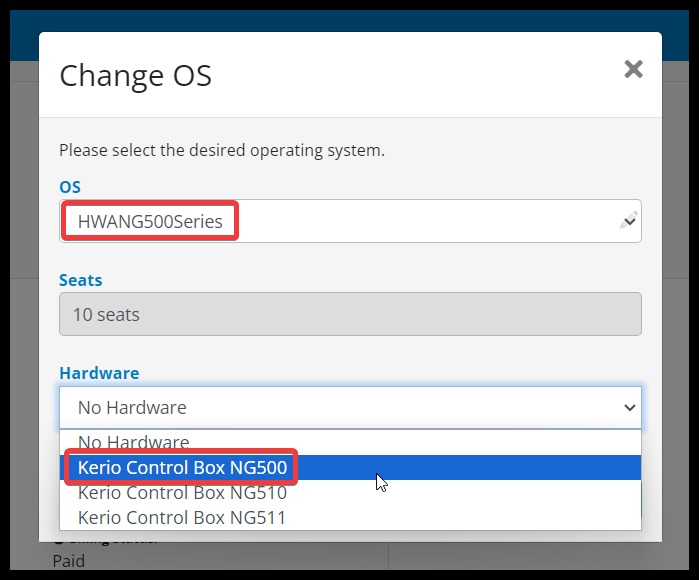
- On the right of the page that opens -> gear icon -> Change OS
- On the pop-up, select the desired OS or Hardware model series from the OS dropdown
Note: if you select a Hardware model series you will also need to select the specific model from the Hardwar dropdown - Click Change and wait for the confirmation dialogue to appear in the bottom right
- Download the license key file and apply it to your instance by following the instructions in How do I download my Kerio key file and manually apply it to my instance?
Additional Information
License binding types: Kerio Control licenses are bound to one of two deployment categories at the time of purchase or migration:
- Hardware Appliance — NG100, NG300, NG500 series physical hardware boxes sold by GFI/Kerio
- Linux OS / Software Appliance — Installed on a standard PC, server, or virtual machine running a supported Linux distribution
These two types are mutually exclusive. A license cannot simultaneously serve both a hardware box and a software appliance. If you migrate from one deployment type to the other, you must update the license binding accordingly using the steps above.
Seat count: Depending on the switch being made, seat counts may be automatically adjusted by the portal. Review the license details after the change.
If self-service does not work: If you cannot change the OS type via the portal (for example, the option is greyed out or you encounter an unexpected error), contact the GFI Customer Care team and provide your license key, hardware serial number (if applicable), your full name, email, and country so Sales/Orders can update the binding on your behalf.
FAQ
Q1: Why does the error appear every day at the same time?
A1: Kerio Control performs an automatic daily license refresh. If the license type recorded at the registration server does not match your deployment, the refresh fails and logs the "User interaction is required" warning each day until the binding is corrected.
Q2: I already tried switching the OS in the portal but it says "The chosen option matches the current option."
A2: This means your license is already set to the type you selected. If that type is correct for your deployment, proceed directly to Step 4 and generate/import a fresh license.key file — this triggers a clean re-registration that clears the mismatch on the server side.
Q3: Does changing the OS/Hardware model in the GFI Accounts Portal affect my existing Kerio Control configuration?
A3: No. The change updates the license binding only. Your Kerio Control configuration, rules, and settings are unaffected. You will need to import the updated license key file to apply the change to the running instance.
Ciprian Nastase
Comments